
Wix Custom Code guide

How to Add Live Chat to Wix

Install the IMsupporting Wix chat widget by pasting one script into Wix Custom Code. This guide shows exactly where the code goes, which placement options to choose, and how to test the chat bubble after publishing.

Fast answer

Where in Wix?
Settings -> Development & integrations -> Custom code
Apply to
All pages
Place code in
Body - end
Final step
Apply, publish, then test
Step 1

Copy the Chat Widget Script

Use this script as the widget embed for the site. Replace YOUR_SITE_ID with the Site ID created when you sign up for free. Keep the attributes intact, especially defer and data-cfasync="false", because they help the chat widget load reliably alongside common website optimization tools.

<!-- Start IMsupporting Flow Widget --> <script defer src="https://flow.chatcdn.imsupporting.com/popover_assets/js/flowwidget.js" data-siteid="YOUR_SITE_ID" data-dept="" data-cfasync="false"> </script> <!-- END IMsupporting Flow Widget -->

After signup, use the Site ID shown in your confirmation or IMsupporting dashboard. Do not paste the example text YOUR_SITE_ID into Wix.
Step 2

Open the Wix Custom code area

  1. Log in to Wix and open the dashboard for the website where live chat should appear.
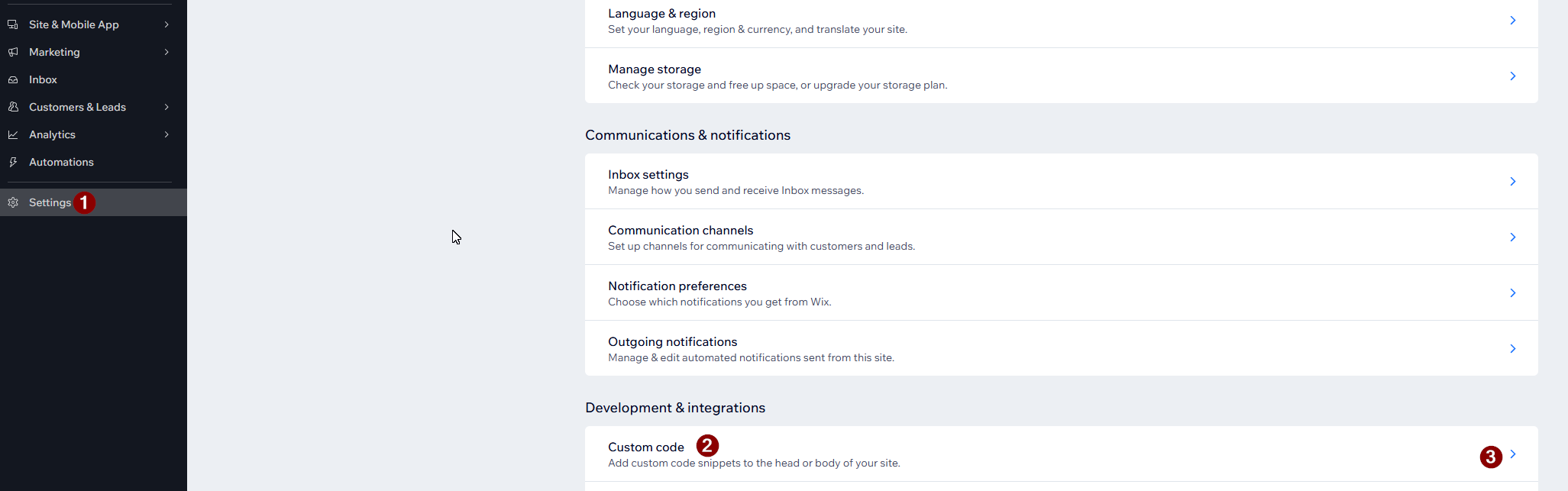
  2. Choose Settings from the site dashboard menu.
  3. Scroll to the bottom of the settings page until you see Development & integrations.
  4. Open Custom code. Wix describes it as the place to add custom code snippets to the head or body of your site.
Wix Settings page showing Development and integrations with the Custom code option highlighted
In Wix Settings, the Custom code option now sits under Development & integrations near the bottom of the page.
Look for: the Custom code row under Development & integrations. This opens the page where Wix lets you add snippets to the head, body start, or body end of the site.
Step 3

Add the chat widget as site-wide custom code

NameIMsupporting Live Chat
Add code to pagesAll pages
Load code on each new pageYes, if Wix shows this option
Place code inBody - end

Inside Wix Custom code, click + Add Custom Code, paste the script, then select the settings above. Body-end placement keeps the widget away from the critical page content Wix needs to render first.

Step 4

Apply, publish, and test the chat bubble

  1. Click Apply in the Wix Custom Code panel.
  2. Publish the Wix website so the script is added to the live public version.
  3. Open the live site in a new browser tab and wait for the chat launcher to appear.
  4. Send a short test message and confirm the conversation reaches your IMsupporting dashboard.
Installed correctly? The chat launcher should appear on the public Wix website, usually near the lower corner of the screen.
Troubleshooting

If the Wix live chat widget is not showing

Publish status

Wix dashboard changes do not appear publicly until the site is published.

Wrong location

Move the snippet to Body - end instead of the head area.

Browser cache

Open an incognito window or clear cache before assuming the script failed.

Script blockers

Disable aggressive ad blockers or privacy extensions while testing.

Code edited accidentally

Check that the script URL, data attributes, and closing script tag are intact.

Dashboard routing

Confirm your operators, departments, and availability are configured in IMsupporting.

After installation

Make the chat widget useful, not just visible

Once the launcher appears, improve outcomes by setting up the parts visitors actually experience during a conversation.

Write a clear greeting

Tell visitors what your team can help with and set expectations for response times.

Add departments

Separate sales, support, appointments, billing, or technical enquiries so messages land with the right people.

Prepare AI answers

Add common questions about delivery, pricing, booking, opening hours, refunds, and service areas.